Sign In | Join Free | My infospaceinc.com
China Shenzhen YZY Technology Co., Ltd logo
Shenzhen YZY Technology Co., Ltd
Verified Supplier

1 Years

Home > HDMI LCD Display >

4 Inch Raspberry Pi Zero Touch Screen LCD Display 800*480 HDMI Port RTP Touch Panel

Shenzhen YZY Technology Co., Ltd
Trust Seal
Verified Supplier
Credit Check
Supplier Assessment
Contact Now

4 Inch Raspberry Pi Zero Touch Screen LCD Display 800*480 HDMI Port RTP Touch Panel

Type : Raspberry pi lcd display

Display Size : 4 inch LCD display

Supplier Type : Factory

size : 4inch display

Outline Dimension : 98.60*58.05

WEIGHT(LCM) : 126g

Video Input : HDMI

Model Number : YQ84-4

Certification : CE/ROHS

MOQ : 100

Payment Terms : T/T

Supply Ability : 50K/Month

Delivery Time : 30-45days

Packaging Details : 100*65*50mm/126g

Place of Origin : China

Brand Name : YZY

Price : $16-18.5/pieces

Contact Now

4 Inch Raspberry Pi Zero Touch Screen LCD Display 800*480 HDMI Port RTP Touch Panel
Product Description
  • 4" standard display with 800 * 480 resolution
  • IPS technology for fast response, wide viewing angle, and true color reproduction
  • Resistive touch screen supports touch control
  • Backlight control with adjustable brightness
  • Standard HDMI interface input, compatible with Raspberry Pi (3rd, 2nd, and 1st generation)
  • Can function as general-purpose HDMI monitor (requires 800*480 resolution output)
  • No IO resources needed for display only (Raspberry Pi uses IO resources for touch)
  • CE and RoHS certified
Product Parameters
Size 4.0 inch
SKU MPI4008
Display Mode IPS
Resolution 800*480 dots
Touch 4-wire resistive touch
Dimensions 143*134*51 mm
Weight 127 g
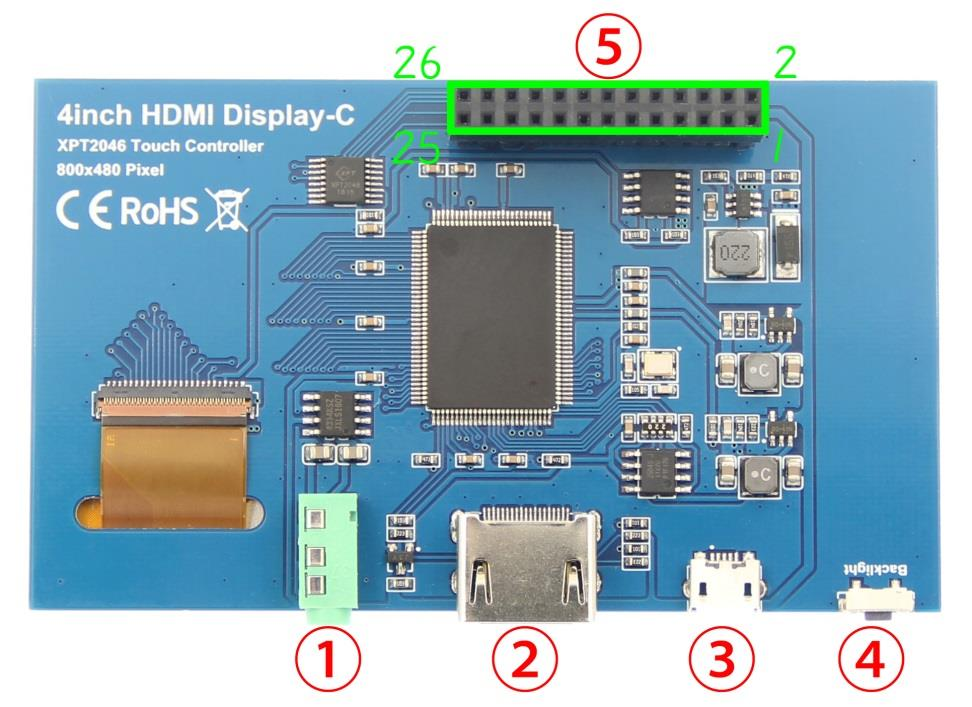
Hardware Description
4 Inch Raspberry Pi Zero Touch Screen LCD Display 800*480 HDMI Port RTP Touch Panel
  1. 3.5mm Headphone Jack: Output audio signal
  2. HDMI: Connect main board and LCD display for HDMI transmission
  3. Micro USB: Provides 5V power (optional if using 13*2 Pin Socket)
  4. Backlight adjustment button: Short press changes brightness 10%, long press turns backlight off/on
  5. 13*2 Pin Socket: Provides +5V power from Raspberry Pi and transfers touch signals
13*2 Pin Socket Interface Definition
Pin Name Description
1,17 3.3V Power supply +3.3V
2,4 5V Power supply +5V
3,5,7,8,10,11,12,13,15,16,18,24 NC No connection
6,9,14,20,25 GND Ground
19 TP_SI SPI data input of touch panel
21 TP_SO SPI data output of touch panel
22 TP_IRQ Touch panel interrupt signal (low when pressed)
23 TP_SCK Touch panel SPI clock signal
26 TP_CS Touch panel select signal (low level selects touch panel)
Dimensions
4 Inch Raspberry Pi Zero Touch Screen LCD Display 800*480 HDMI Port RTP Touch Panel
Connect with Raspberry Pi
  1. Connect the LCD 13*2 Pin socket to Raspberry Pi as shown: 4 Inch Raspberry Pi Zero Touch Screen LCD Display 800*480 HDMI Port RTP Touch Panel
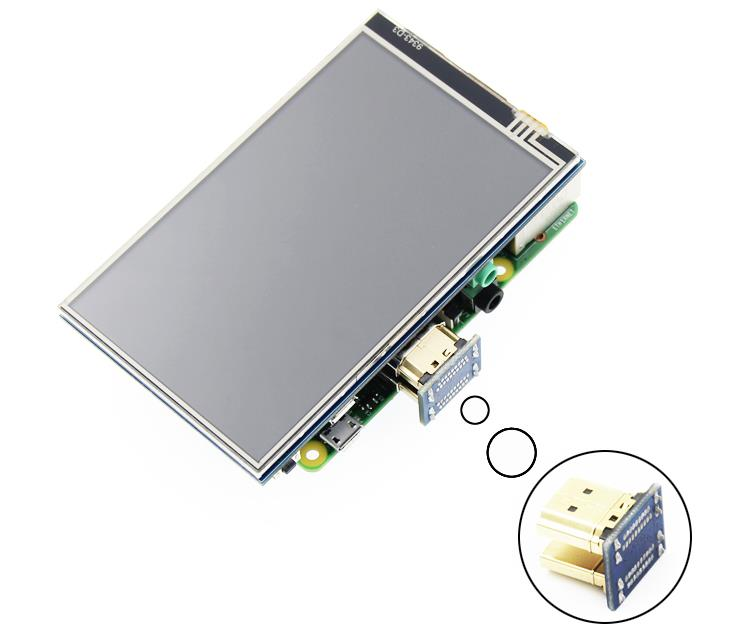
  2. Connect the LCD and Raspberry Pi with the HDMI adapter: 4 Inch Raspberry Pi Zero Touch Screen LCD Display 800*480 HDMI Port RTP Touch Panel
How to Use with Raspbian
Step 1: Install Raspbian Official Image
  1. Download from official website: https://www.raspberrypi.org/downloads/
  2. Format Micro SD card using SDFormatter
  3. Burn the official image to Micro SD card using Win32DiskImager
Step 2: Install Driver
Method 1: Online Installation (Requires Internet)
  1. Log onto Raspberry Pi via Putty SSH (User: pi; Password: raspberry)
  2. Execute the following command (you can click the right mouse button to paste after copied in Putty)
    git clone https://github.com/goodtft/LCD-show.git
    chmod -R 755 LCD-show
    cd LCD-show/
    sudo ./MPI4008-show
  3. Wait for a moment after executing, you can use the LCD.
Method 2: Offline Installation
  1. Download or copy "lcd-show.tar.gz" driver to Raspberry Pi system root directory: http://www.lcdwiki.com/res/RaspDriver/LCD-show.tar.gz
  2. Unzip and extract drive files as the following command:
    cd /boot
    sudo tar zxvf LCD-show.tar.gz
    cd LCD-show/
    sudo ./MPI4008-show
  3. Wait for a moment after executing, you can use the LCD
How to Use with Ubuntu, Kali and RetroPie
Step 1: Install Official Image
  1. Download from official websites:
  2. Format Micro SD card using SDFormatter
  3. Burn the official image to Micro SD card using Win32DiskImager
Step 2: Install Driver (Offline Only)
Due to system differences, Ubuntu, Kali, RetroPie are temporarily unable to install drivers online. Only the offline installation method can be used.
1) Download the corresponding version of driver "LCD-show.tar.gz" from the website to the root directory of Micro SD card of raspberry PI system(Note: if the version does not match, the LCD may not display properly):
(After the completion of the recommended step 1, copy the driver directly into the Micro SD card root directory)
2) Unzip and install the driver using the following command:
cd /boot
sudo tar zxvf LCD-show.tar.gz
cd LCD-show/
sudo ./MPI4008-show
3) After the command is executed, the system will restart and the LCD will work normally
Quick Start with Pre-installed Driver Image
  1. Download driver image from: http://www.lcdwiki.com/4inch_HDMI_Display-C#Download_Resources
  2. Format Micro SD card using SDFormatter
  3. Burn the image to Micro SD card using Win32DiskImager
  4. Insert card, connect LCD, and start Raspberry Pi
How to Use as PC Monitor
  • Connect computer HDMI output to LCD HDMI interface
  • Power via Micro USB interface
  • For testing, use as only display (disconnect other monitors)
  • Note: Touch function not available when used as PC monitor

Product Tags:

4 Inch Raspberry Pi Zero Touch Screen


Raspberry Pi Zero Touch Screen LCD Display


HDMI Port RTP Touch Panel

      
Quality 4 Inch Raspberry Pi Zero Touch Screen LCD Display 800*480 HDMI Port RTP Touch Panel for sale

4 Inch Raspberry Pi Zero Touch Screen LCD Display 800*480 HDMI Port RTP Touch Panel Images

Inquiry Cart 0
Send your message to this supplier
 
*From:
*To: Shenzhen YZY Technology Co., Ltd
*Subject:
*Message:
Characters Remaining: (0/3000)